Voucher Type
Define and manage the categories of accounting vouchers used for recording financial transactions.
Table of Contents
- 1. Overview
- 2. Understanding the Screen
- 3. Standard Voucher Types
- 4. Creating a New Voucher Type
- 5. Editing an Existing Voucher Type
- 6. Deleting a Record
- 7. Frequently Asked Questions
- 8. Related Modules
1. Overview
The Voucher Type module allows administrators to define and manage the categories of accounting vouchers used for recording all financial transactions in the General Ledger (GL).
Every financial transaction in QAL ERP must be recorded under a specific Voucher Type. The type determines the nature of the transaction — for example, whether money is being paid out, received, adjusted via a journal entry, or transferred between accounts. A unique short code is assigned to each type for quick identification across reports and entries.
Purpose
- Define the transaction categories used across the accounting system.
- Assign unique short codes to each voucher type for identification in reports.
- Control which voucher types are active and available for use.
- Maintain a clean, auditable register of all transaction categories.
Navigation
📍 Path: Accounting → Accounts → Voucher Type
To access this module, expand the Accounts section in the left-hand sidebar and click Voucher Type:
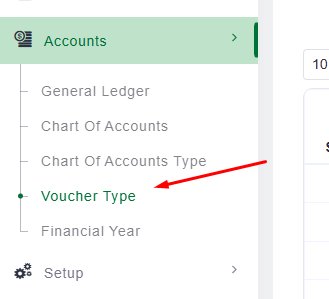 Figure 1 – Sidebar navigation to Voucher Type
2. Understanding the Screen
The Voucher Type list screen displays all configured voucher types in a sortable, filterable table.
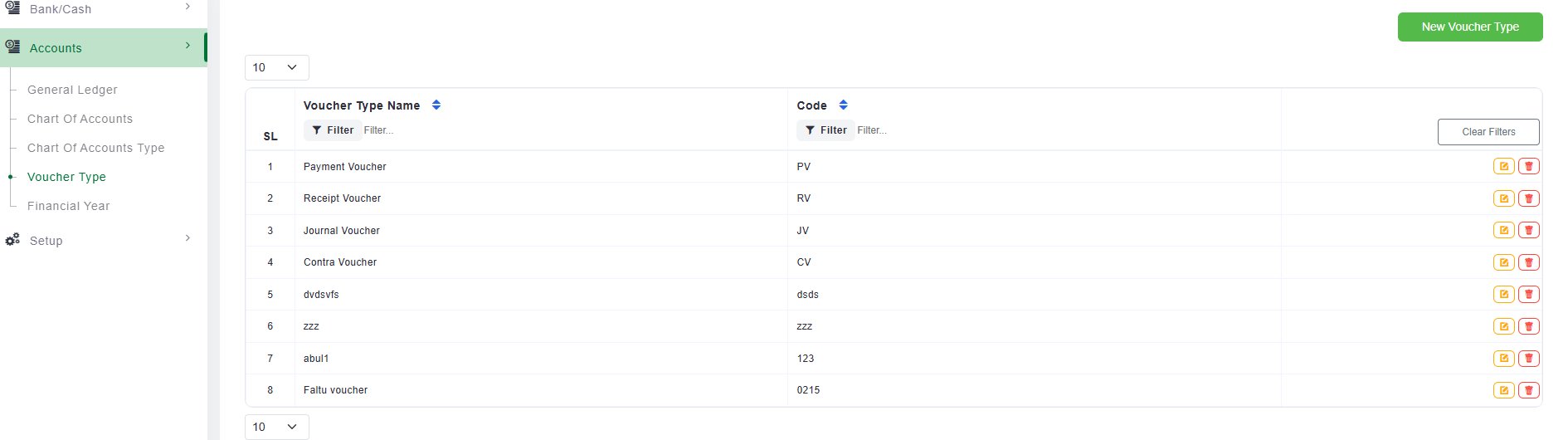 Figure 2 – Voucher Type list screen
Page Header & Breadcrumb
| Element | Description |
|---|---|
| Page Title | “Voucher Type” — identifies the current module page. |
| Breadcrumb | Home / Accounting / Voucher Type — shows the current location within the ERP. |
| Branch Label | Displays the active branch (e.g., Head Office Branch) in the top-right corner. |
| User Role | Shows the logged-in user and their role (e.g., admin / Administrators). |
Data Table Columns
| Column | Field Name | Description |
|---|---|---|
| SL | Serial No. | Auto-generated row number for display purposes. |
| Voucher Type Name | Name | The full descriptive name of the voucher type (e.g., Payment Voucher, Receipt Voucher). |
| Code | Short Code | A unique alphanumeric short code used to identify the type in transactions and reports (e.g., PV, RV, JV, CV). |
Table Controls
| Control | Description |
|---|---|
| Rows per page (10 ▼) | Dropdown at the top and bottom of the list. Adjust to show more records per page. |
| Filter (per column) | Inline text search under each column header. Type to filter by Name or Code. |
| Sort (▲▼ arrows) | Click column header arrows to sort alphabetically in ascending or descending order. |
| Clear Filters | Resets all active column filters and restores the full list. |
Action Buttons (Per Row)
| Button | Colour | Function |
|---|---|---|
| Edit | Yellow / Orange | Opens the Voucher Type Edit modal pre-filled with the current values. |
| Delete | Red | Permanently removes the record — only if the type has NOT been used in any transactions. |
The Delete button will be blocked if the Voucher Type is already referenced by existing vouchers or GL transactions. This protects the integrity of your financial records.
3. Standard Voucher Types
QAL ERP comes pre-configured with the following standard voucher types:
| Code | Voucher Type Name | Description |
|---|---|---|
| PV | Payment Voucher | Records payments made by the organisation to vendors, suppliers, or other parties. |
| RV | Receipt Voucher | Records money received by the organisation from customers or other sources. |
| JV | Journal Voucher | Used for internal adjustments, corrections, and non-cash accounting entries. |
| CV | Contra Voucher | Records transfers between cash and bank accounts within the same organisation. |
Custom voucher types can be added to suit specific business needs, such as payroll journals or inter-branch transfers.
4. Creating a New Voucher Type
Step 1 — Open the Form
Click the green “New Voucher Type” button in the top-right corner of the list screen.
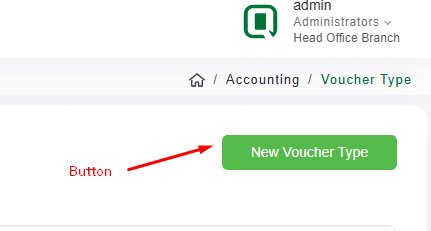 Figure 3 – “New Voucher Type” button
This opens the Voucher Type Add modal dialog:
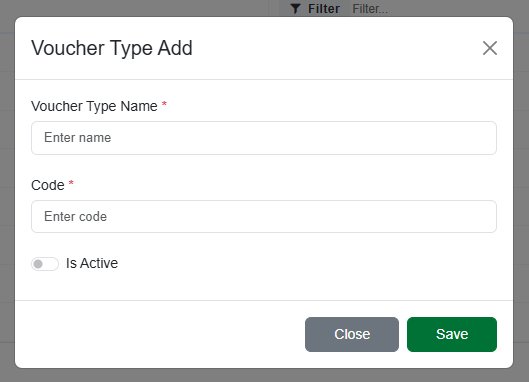 Figure 4 – Voucher Type Add modal
Step 2 — Fill in the Required Fields
All fields marked with a red asterisk * are mandatory.
| Field | Required? | Guidance |
|---|---|---|
| Voucher Type Name | Yes * | Enter a clear, descriptive name (e.g., “Payroll Voucher”, “Contra Voucher”). |
| Code | Yes * | Enter a short, unique alphanumeric code (e.g., PV, JV). This code appears on all related transactions. |
| Is Active | No | Toggle on to make the voucher type immediately available for use. |
Step 3 — Save the Record
Click the green Save button to create the new Voucher Type, or Close to discard. The new record appears in the list immediately.
💡 Keep codes short and intuitive (2–4 characters). Follow the same pattern as the standard types — PV, RV, JV, CV — for consistency across reports.
5. Editing an Existing Voucher Type
Voucher types can be updated at any time, including those already in use.
- Locate the record in the list.
- Click the yellow Edit button on the right side of the row.
- The Voucher Type Edit modal opens pre-filled with the current values.
- Update the required fields.
- Click Save to apply changes, or Close to discard.
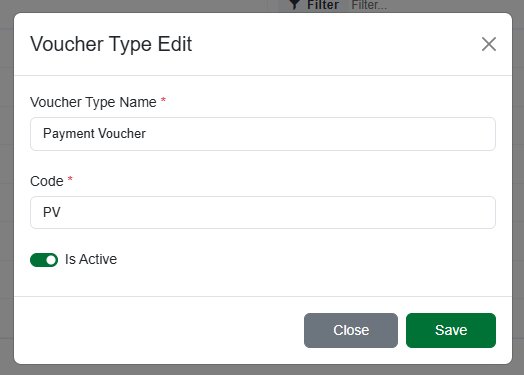 Figure 5 – Voucher Type Edit modal (pre-filled with existing data)
Changing the Name or Code of a Voucher Type already used in transactions will update how those transactions are labelled across reports. Review the impact carefully before editing in a live environment.
6. Deleting a Record
Deletion is only permitted when the type has not been referenced in any transaction.
When Deletion is Allowed
- The voucher type is newly created and has not been used in any voucher entry.
- The voucher type was created in error and carries no transaction history.
When Deletion is Blocked
- The voucher type is referenced in one or more existing GL vouchers or transactions.
🔒 System Rule: If a user attempts to delete a Voucher Type that is already in use, the system will block the deletion and show an error. This is by design to preserve financial data integrity and auditability.
Steps to Delete
- Locate the record in the list.
- Click the red Delete button.
- Confirm the deletion if prompted.
- The record is permanently removed from the system.
7. Frequently Asked Questions
Q: Can I rename a voucher type that is already in use?
Yes. The Name and Code fields can be edited at any time. However, the updated values will reflect across all existing transactions that use this voucher type.
Q: What does the “Is Active” toggle do?
When set to inactive, the voucher type will not appear in the selection dropdown when creating new voucher entries. Existing records using that type remain unaffected.
Q: Can two voucher types have the same code?
No. The Code field must be unique across all voucher types. The system will prevent saving a duplicate code.
Q: How many custom voucher types can I create?
There is no hard system limit. However, it is best practice to keep the list concise and aligned with your organisation’s actual transaction categories to avoid confusion in reporting.
8. Related Modules
| Module | Relationship |
|---|---|
| General Ledger | All voucher entries posted to the GL are tagged with a Voucher Type. |
| Chart of Accounts | GL accounts used in voucher entries are structured by Chart of Accounts Types. |
| Chart of Accounts Type | Defines the account categories (Asset, Liability, etc.) that vouchers post against. |
| Financial Year | Vouchers are posted within financial year periods; types determine reporting classification. |
| Bank / Cash | Payment, Receipt, and Contra vouchers directly affect bank and cash account balances. |