Chart of Accounts Type
A foundational setup feature for classifying General Ledger accounts.
Table of Contents
- 1. Overview
- 2. Understanding the Screen
- 3. Creating a New Chart of Accounts Type
- 4. Editing an Existing Record
- 5. Deleting a Record
- 6. Default Balance Reference
- 7. Frequently Asked Questions
- 8. Related Modules
1. Overview
The Chart of Accounts Type module allows administrators to define and manage the high-level classification types used to organise the General Ledger (GL) Chart of Accounts.
Each account in the system must belong to a Chart of Accounts Type, which determines how that account is categorised in financial reports such as the Balance Sheet or Income Statement.
Purpose
- Define the top-level categories (types) for grouping GL accounts.
- Classify accounts as Balance Sheet or Income Statement items.
- Assign default balance direction (Debit or Credit) for each type.
- Provide a structured coding system for account categorisation.
Navigation
📍 Path: Accounting → Accounts → Chart of Accounts Type
To access this module, expand the Accounts menu in the left-hand sidebar and click Chart of Accounts Type:
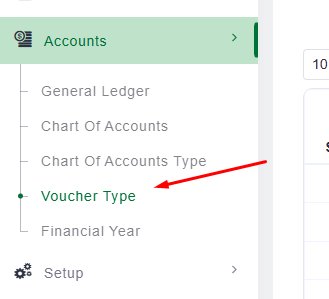 Figure 1 – Sidebar navigation to Chart of Accounts Type
2. Understanding the Screen
The list screen displays all existing account types in a filterable, sortable table.
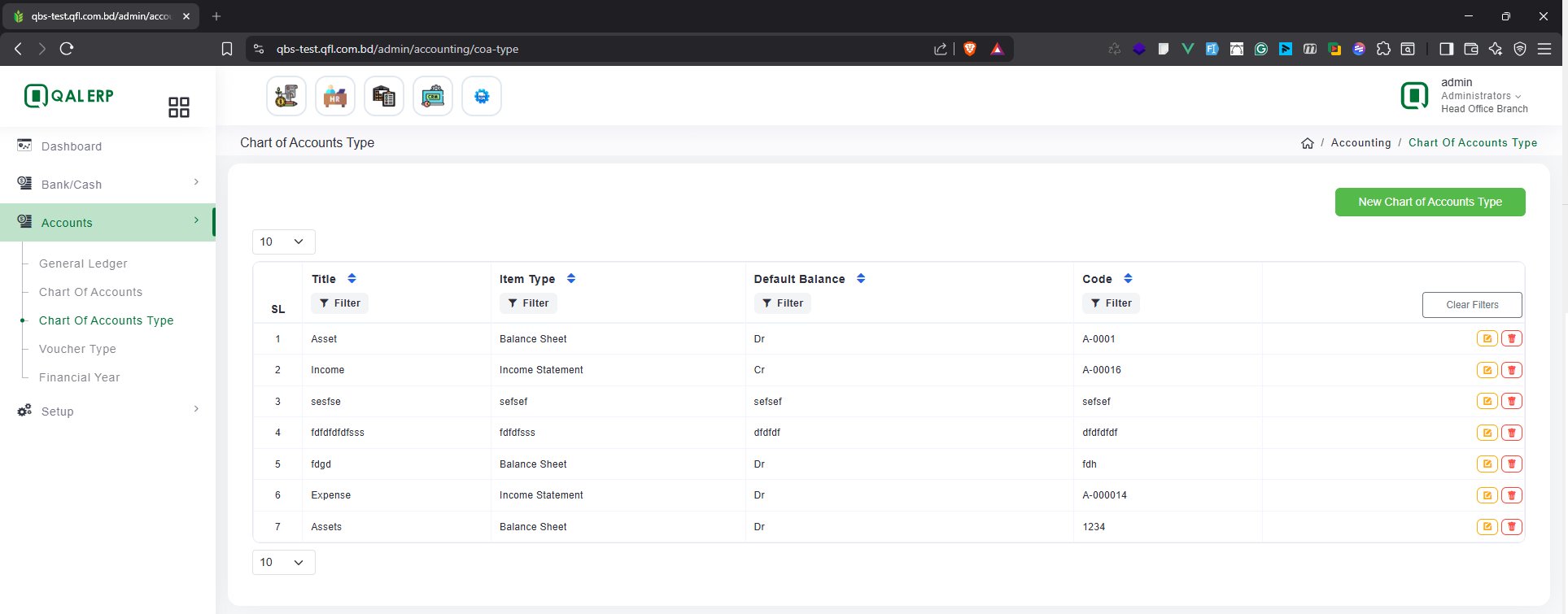 Figure 2 – Chart of Accounts Type list screen
Page Header & Breadcrumb
| Element | Description |
|---|---|
| Page Title | “Chart of Accounts Type” — identifies the current module page. |
| Breadcrumb | Home / Accounting / Chart Of Accounts Type — shows the navigation path. |
| Branch Label | Displays the active branch (e.g., Head Office Branch) in the top-right corner. |
| User Role | Shows the logged-in user and role (e.g., admin / Administrators). |
Data Table Columns
| Column | Field Name | Description |
|---|---|---|
| SL | Serial No. | Auto-generated row number for display purposes. |
| Title | Account Type Name | The descriptive name of the account type (e.g., Asset, Income, Expense). |
| Item Type | Financial Statement | Whether this type appears on the Balance Sheet or Income Statement. |
| Default Balance | Normal Balance | The default balance direction: Dr (Debit) or Cr (Credit). |
| Code | Account Code | A unique alphanumeric identifier (e.g., A-0001, A-000014). |
Action Buttons (Per Row)
| Button | Colour | Function |
|---|---|---|
| Edit | Yellow / Orange | Opens the form to modify the existing record. |
| Delete | Red | Removes the record — only if the type has NOT been used in any GL account. |
The Delete button will be blocked if the Chart of Accounts Type is already assigned to one or more GL accounts. This protects the integrity of your financial data.
3. Creating a New Chart of Accounts Type
Step 1 — Open the Form
Click the green “New Chart of Accounts Type” button in the top-right corner of the list screen.
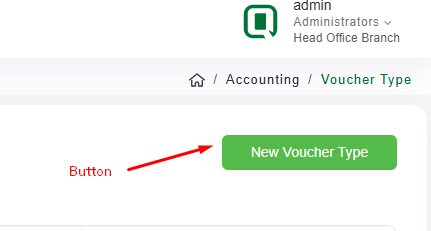 Figure 3 – “New Chart of Accounts Type” button
This opens the Chart Of Accounts Type Add modal:
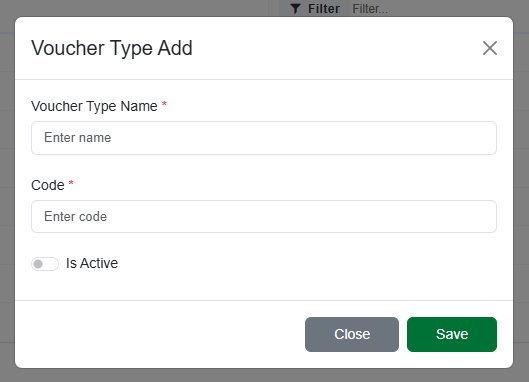 Figure 4 – Chart of Accounts Type Add modal
Step 2 — Fill in the Required Fields
All fields marked with a red asterisk * are mandatory.
| Field | Required? | Guidance |
|---|---|---|
| Title | Yes * | Enter a clear, descriptive name (e.g., “Liability”, “Equity”). |
| Item Type | Yes * | Select Balance Sheet or Income Statement from the dropdown. |
| Default Balance | Yes * | Select Dr (Debit) or Cr (Credit) based on standard accounting convention. |
| Code | Yes * | Enter a unique alphanumeric code following your organisation’s convention (e.g., A-0001). |
| Is Active | No | Toggle to activate or deactivate the account type. Inactive types are hidden from GL account dropdowns. |
Step 3 — Save the Record
Click the green Save button to create the record, or Close to discard. The new entry appears in the list immediately.
💡 Use a consistent coding convention from the start — for example, prefix Balance Sheet types with A- to make filtering and reporting easier.
4. Editing an Existing Record
Account types can be updated at any time, including those already in use.
- Locate the record in the list.
- Click the yellow Edit button on the right side of the row.
- The Chart Of Accounts Type Edit modal opens pre-filled with the current values.
- Modify the required fields.
- Click Save to apply changes, or Close to discard.
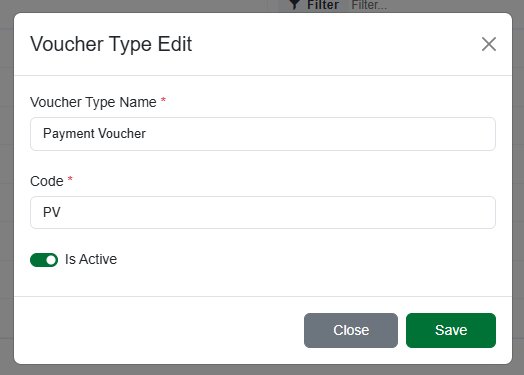 Figure 5 – Chart of Accounts Type Edit modal (pre-filled with existing data)
Editing the Title, Item Type, Default Balance, or Code of a type already in use will affect how existing GL accounts are classified in financial reports. Review the impact before making changes in a live environment.
5. Deleting a Record
Deletion is only permitted when the type has not been assigned to any GL account.
When Deletion is Allowed
- The account type is newly created and has not been linked to any GL account.
- The account type was created in error and has no associated data.
When Deletion is Blocked
- The account type is assigned to one or more GL accounts.
- Historical transactions reference accounts under this type.
🔒 System Rule: If a user attempts to delete a Chart of Accounts Type that is already in use, the system will prevent the deletion and show an error. This is by design to ensure financial data integrity and auditability.
Steps to Delete
- Locate the record in the list.
- Click the red Delete button.
- Confirm the deletion if prompted.
- The record is permanently removed from the system.
6. Default Balance Reference
| Account Type | Item Type | Default Balance | Code Example |
|---|---|---|---|
| Asset | Balance Sheet | Dr (Debit) | A-0001 |
| Liability | Balance Sheet | Cr (Credit) | A-0002 |
| Equity | Balance Sheet | Cr (Credit) | A-0003 |
| Income / Revenue | Income Statement | Cr (Credit) | A-00016 |
| Expense | Income Statement | Dr (Debit) | A-000014 |
7. Frequently Asked Questions
Q: Can I rename an account type after it has been used?
Yes. The Title and Code can be edited at any time. However, changes will reflect across all associated GL accounts and reports — review the impact first.
Q: Why can’t I delete a record even though I am an Administrator?
The system prevents deletion of any Chart of Accounts Type linked to GL accounts, regardless of user role. This is a system-level data integrity rule.
Q: What does the “Is Active” toggle do?
Setting a type to inactive hides it from selection dropdowns when creating or editing GL accounts, without deleting the record or its history.
Q: What is the difference between Item Type and Default Balance?
Item Type determines which financial statement the account appears in. Default Balance sets whether the account normally holds a Debit or Credit balance, following standard double-entry bookkeeping conventions.
8. Related Modules
| Module | Relationship |
|---|---|
| Chart of Accounts | Each GL account must be linked to a Chart of Accounts Type defined here. |
| General Ledger | Transactions are posted to GL accounts classified by their type. |
| Voucher Type | Vouchers reference GL accounts, inheriting their account type classification. |
| Financial Year | Reporting periods use account types to structure Balance Sheet and P&L reports. |